Help Center/Profile Editor
Profile Editor Tutorial
Editing your public profile — bio details, content types and languages, location and social links — plus writing blog and vlog posts.
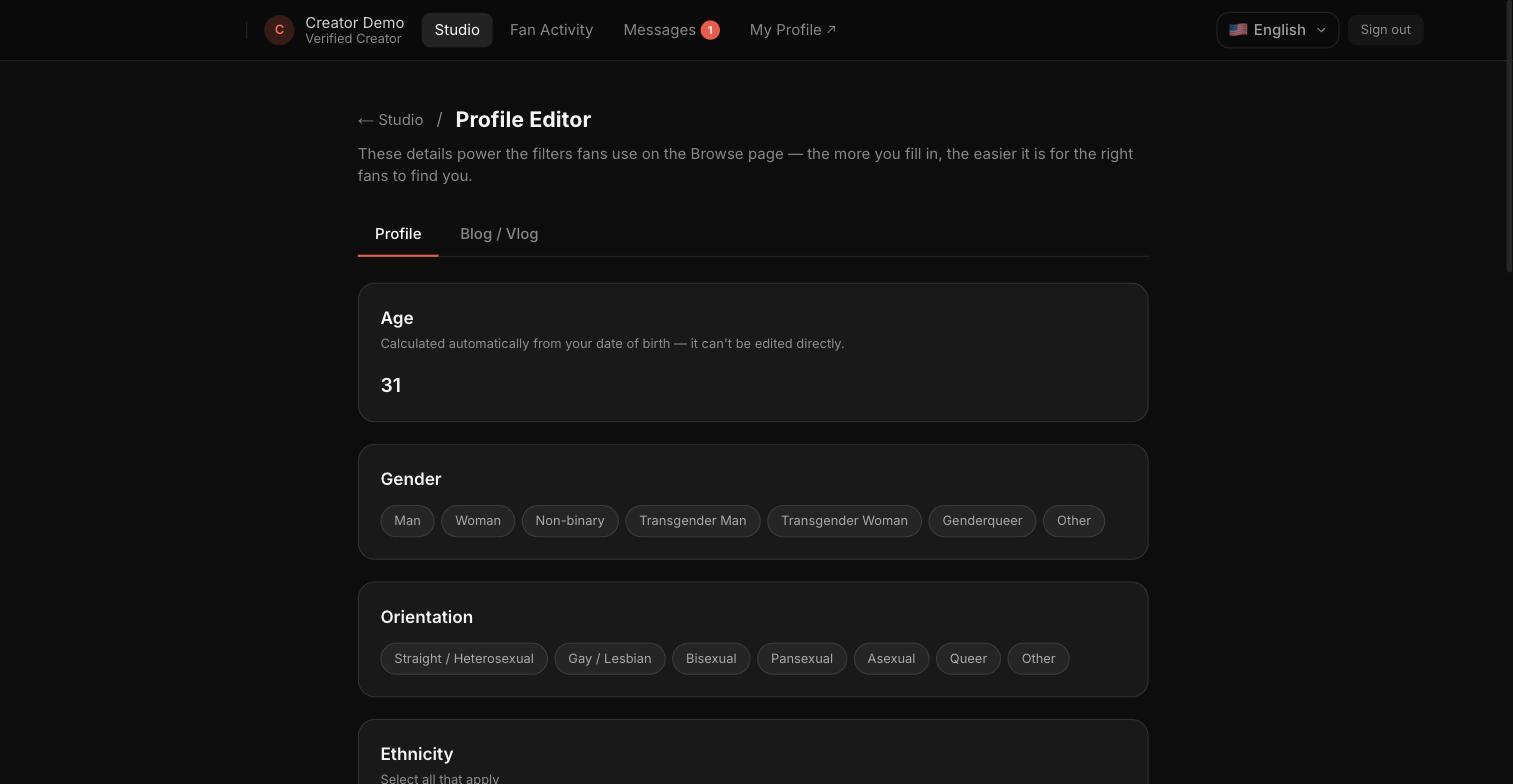
Step 1 — Edit your public profile
The Profile tab holds your display name, bio, and other public-facing details.
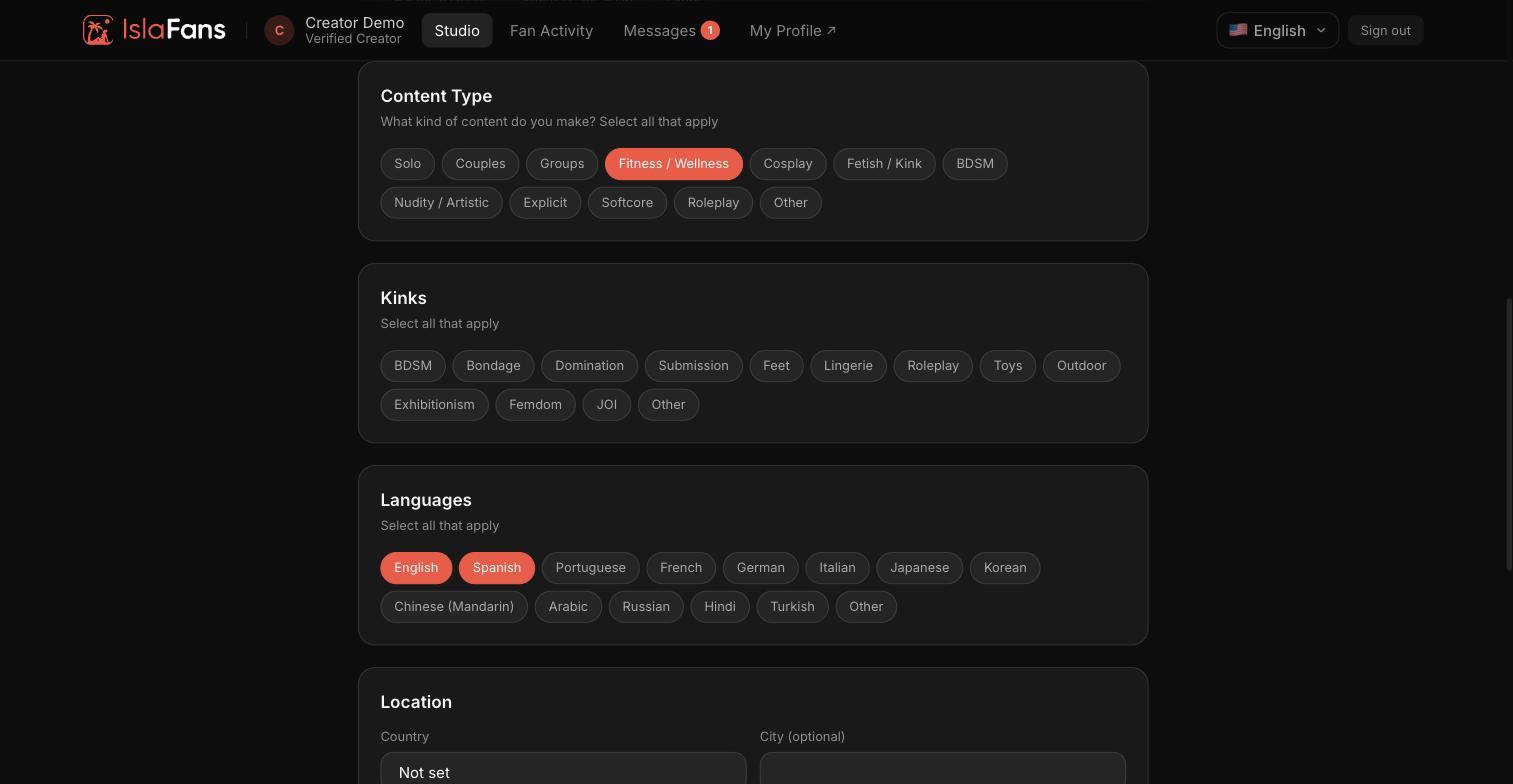
Step 2 — Content types, kinks, and languages
Select the content categories, kinks, and languages that describe your content and audience.
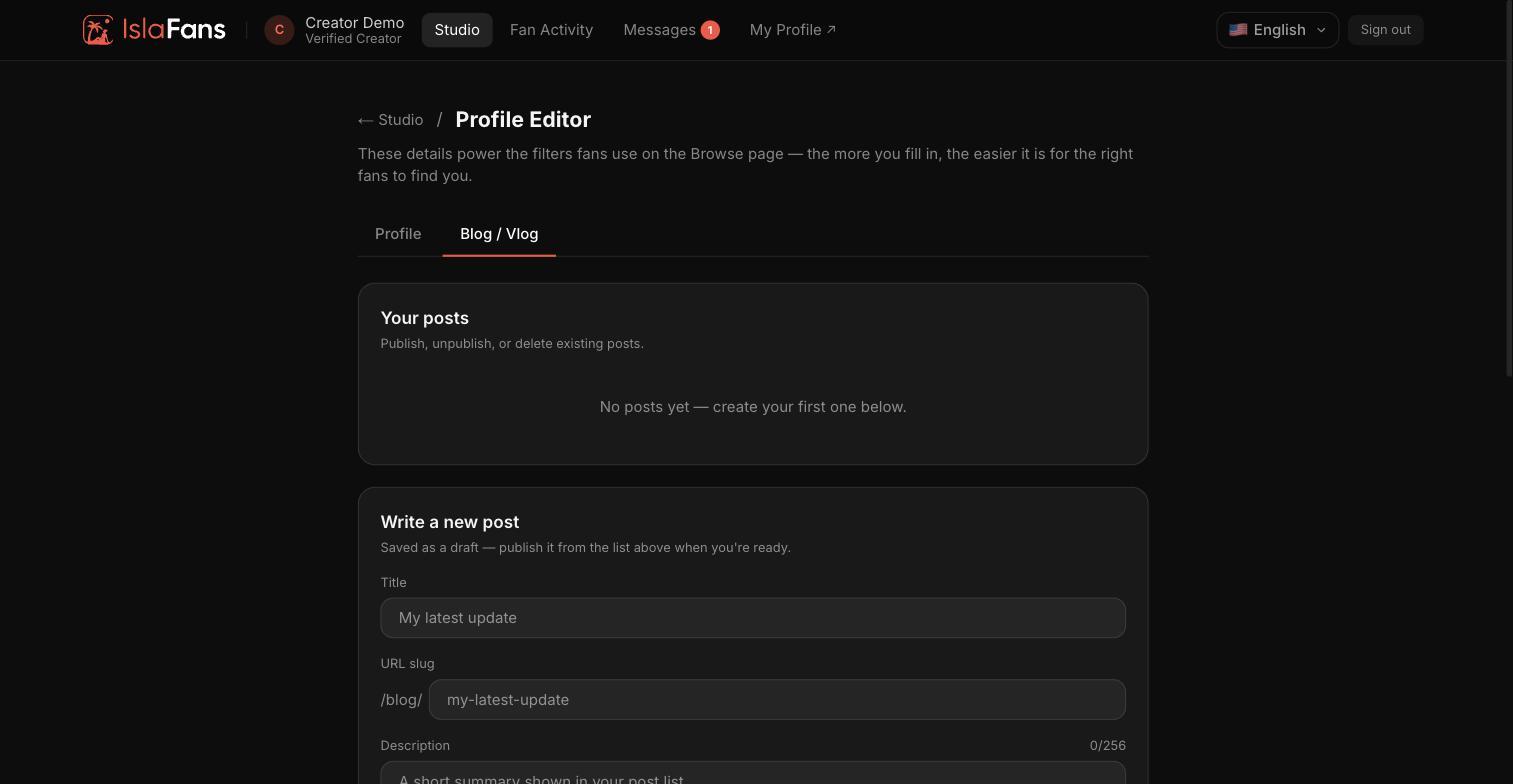
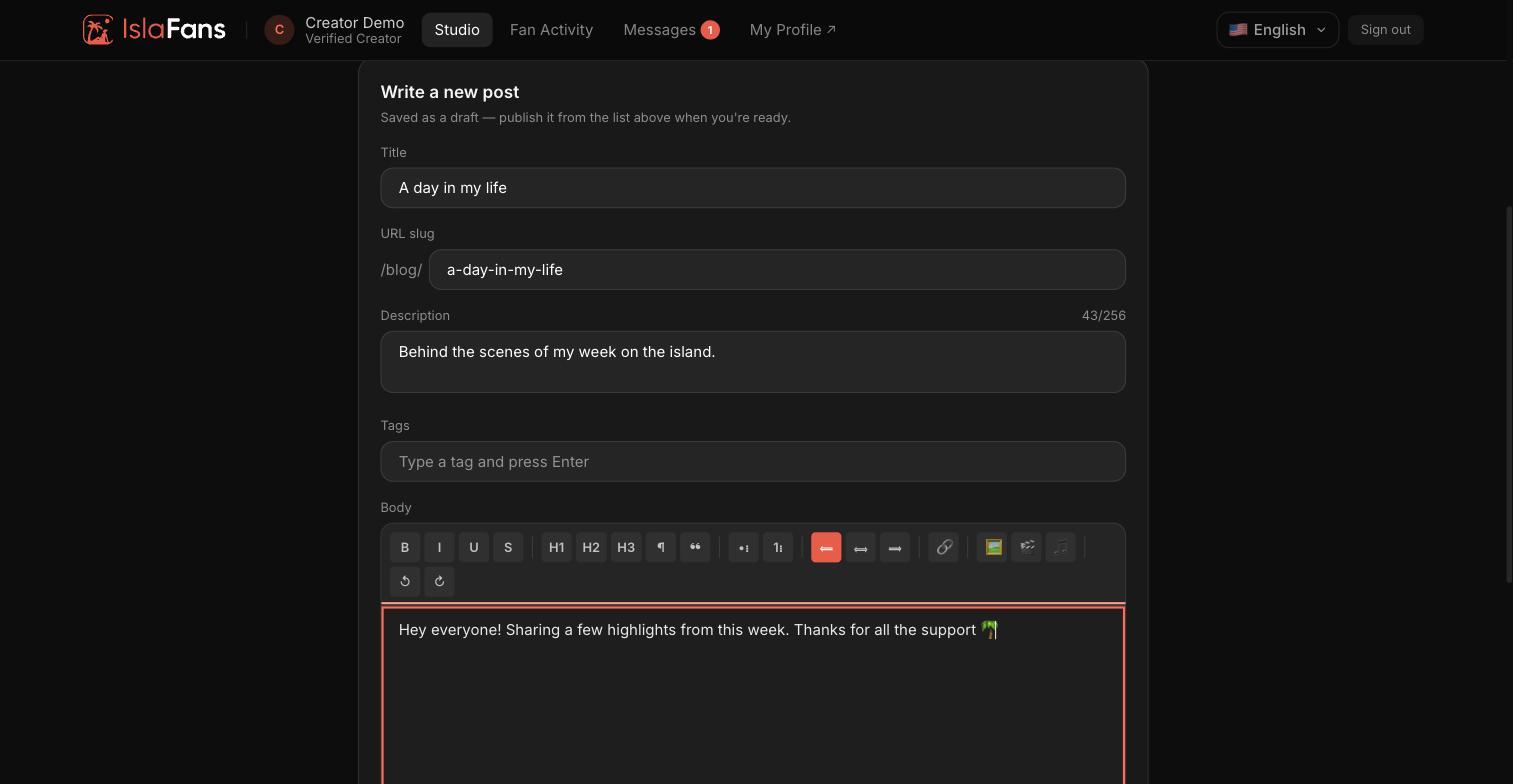
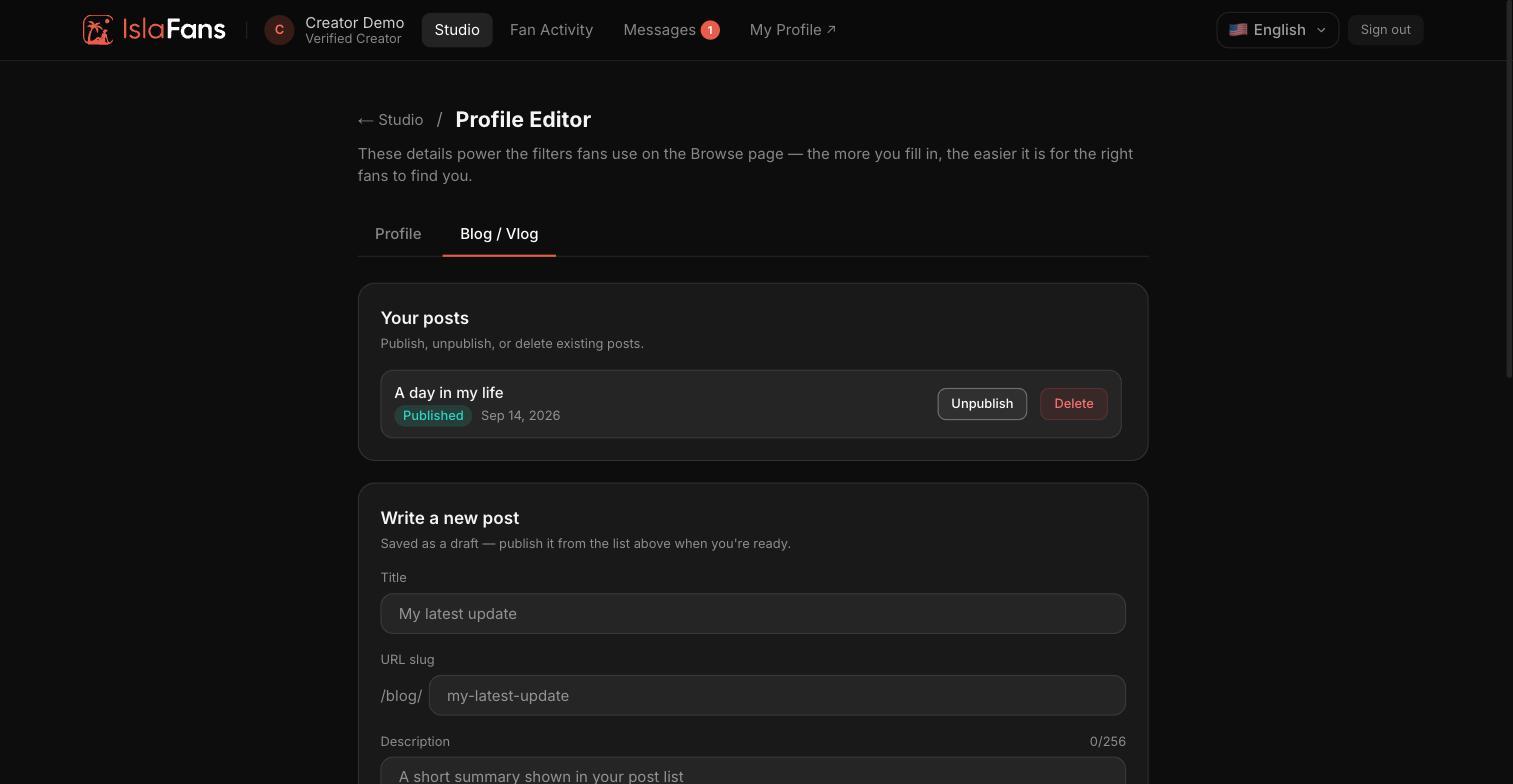
Step 4 — Blog / Vlog posts
The Blog/Vlog tab is a separate feed on your profile for written posts and video updates, independent of your paid content feed.
Notes
- Changes to your profile save independently from your Blog/Vlog posts — use the Save button in each section.
- Blog/Vlog posts are separate from paid content posted from the Content tile and are typically free to view.
Step 3 — Location and social links
Add your location and links to your other social media profiles.